

 HANDS ON SharePoint
 HANDS ON Teams
 HANDS ON Lists
 HANDS ON tek
 M365 Admin
Turn Your Copilot into Autopilot – Automated Prompts on a Repeating Schedule
I like to start the day with Copilot, but I don’t want to type the same prompt every morning. The fix is simple. Turn a good prompt into a small routine that runs for you, gathers the signals you care about, and sends a clean briefing before I even sit down at my desk.
Microsoft has quietly added this feature that lets you schedule a Copilot prompt, so you don’t have to remember to run it every morning. It’s simple, lightweight, and works directly inside Microsoft 365 without needing Power Automate or Copilot Studio.

What an “automated prompt” actually means in Copilot
An automated prompt is just a normal Copilot prompt that you save and tell Copilot to run on a repeating schedule: daily, weekly, or at a specific time.
Copilot then triggers the prompt on its own and delivers the output once it is ready.
How to configure an automated prompt inside Copilot
- Open Copilot, start a new chat, and write the prompt you want to automate.
“Give me a morning summary: important meetings today, unread important emails, and pending tasks from yesterday.” - Execute the prompt, wait for the reply and refine if needed to include all the information in the format that makes sense to you.
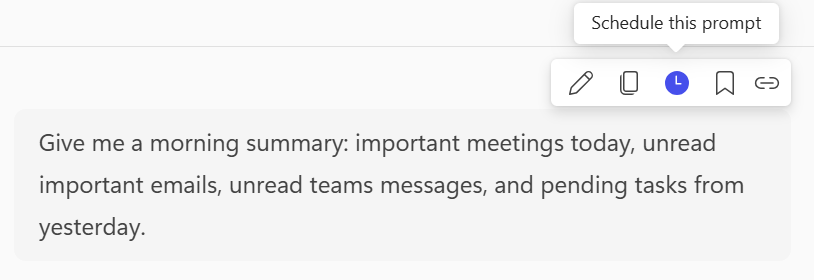
- Next to your prompt click the Clock icon to schedule the prompt
- Define the recurrence of the prompt and the number of times you want to execute it
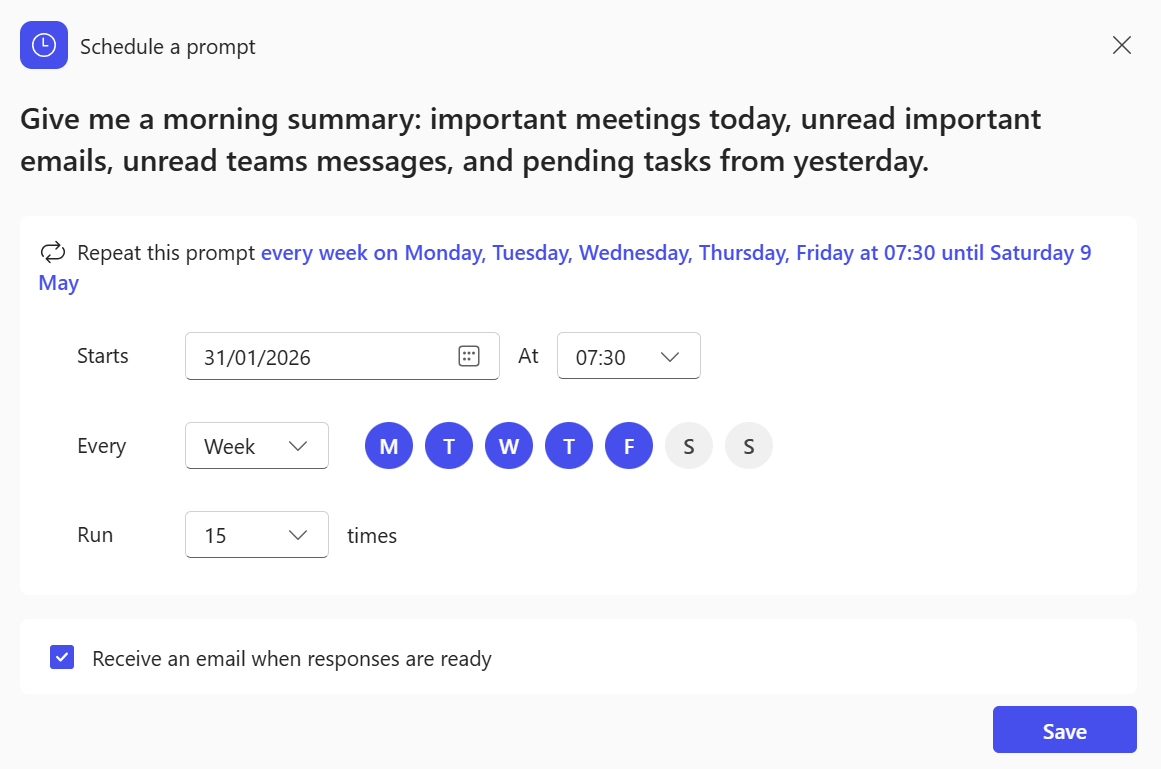 Note: Microsoft currently limits scheduled Copilot prompts to a maximum of 15 runs. After the 15th execution, the schedule automatically stops. To continue using the prompt, you need to edit the schedule, duplicate it, or recreate it.
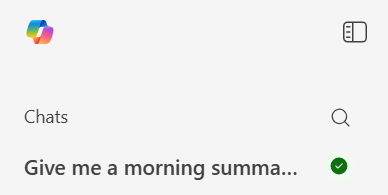
 - You will be able to identify the reply from automated prompts in the list of chats, they are marked with a green icon before being read
Managing Your Automated Prompts
Once you start creating automated prompts, Copilot gives you a simple way to review, modify, or stop them whenever you need. Everything lives in one place, and it only takes two clicks to get there.
To manage your scheduled prompts:
- Open Copilot
- Select the three‑dot menu ( … ).
- Choose Scheduled prompts, this opens the full list of all your active and inactive schedules.
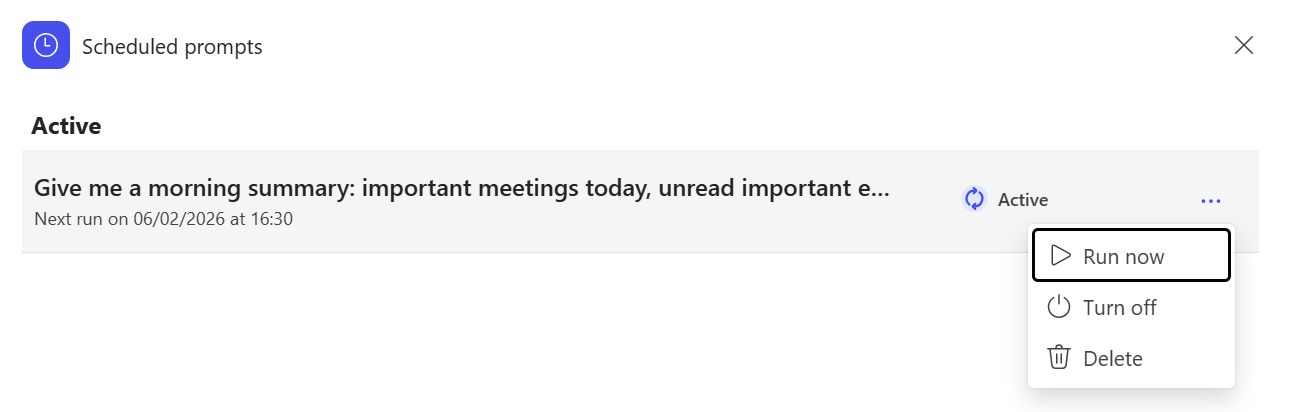 Note: If you want Copilot to execute a scheduled prompt immediately (without waiting for its next run time), select Run now.
Suggested automated prompts for the beginning of the day
Here are examples of automated prompts you can use as inspiration to create your owns:
- Morning Essentials
Give me a morning brief: today’s meetings, priorities, unread important messages, and tasks I must move forward today.
- Task Rollover
Look at my open tasks and tell me what’s overdue, what’s due today, and what I should plan for tomorrow.
- Yesterday Recap
Summarize the things I missed or didn’t complete yesterday and propose my top three priorities for today.
- Email Triage
Check unread important emails from the last 24 hours and tell me what requires action, what I can archive, and what needs a reply.
- Meetings Prep
List my meetings today with objectives, required prep, and the documents or threads I should review before each one.
- Quick Accountability Check
Highlight pending approvals, messages waiting for my response, and dependencies blocking other people.
Conclusion
Automated prompts don’t replace your work, they remove the friction that keeps you from starting it. Once you set them up, Copilot quietly takes care of the repetitive prep so you can focus on decisions, not busywork. Whether it’s getting a morning briefing, staying on top of tasks, or keeping meetings under control, these small automations add up fast. And the best part? You build them once, they run on their own (until they are executed 15 times and you need to recreate them!), and your day simply flows better.
If you haven’t explored them yet, now is the perfect time to turn your Copilot into Autopilot.






February 2, 2026
good one…