

 HANDS ON SharePoint
 HANDS ON Teams
 HANDS ON Lists
 HANDS ON tek
 M365 Admin
Microsoft Places Finder in Outlook: what it replaces and how to enable it
Finding a meeting room in Outlook has long meant using Room Finder: a flat list of resources with little sense of where those rooms actually are. It did the job, but it treated space as an abstract concept, disconnected from buildings, floors, and the way people move through an office. That model worked when offices were static.
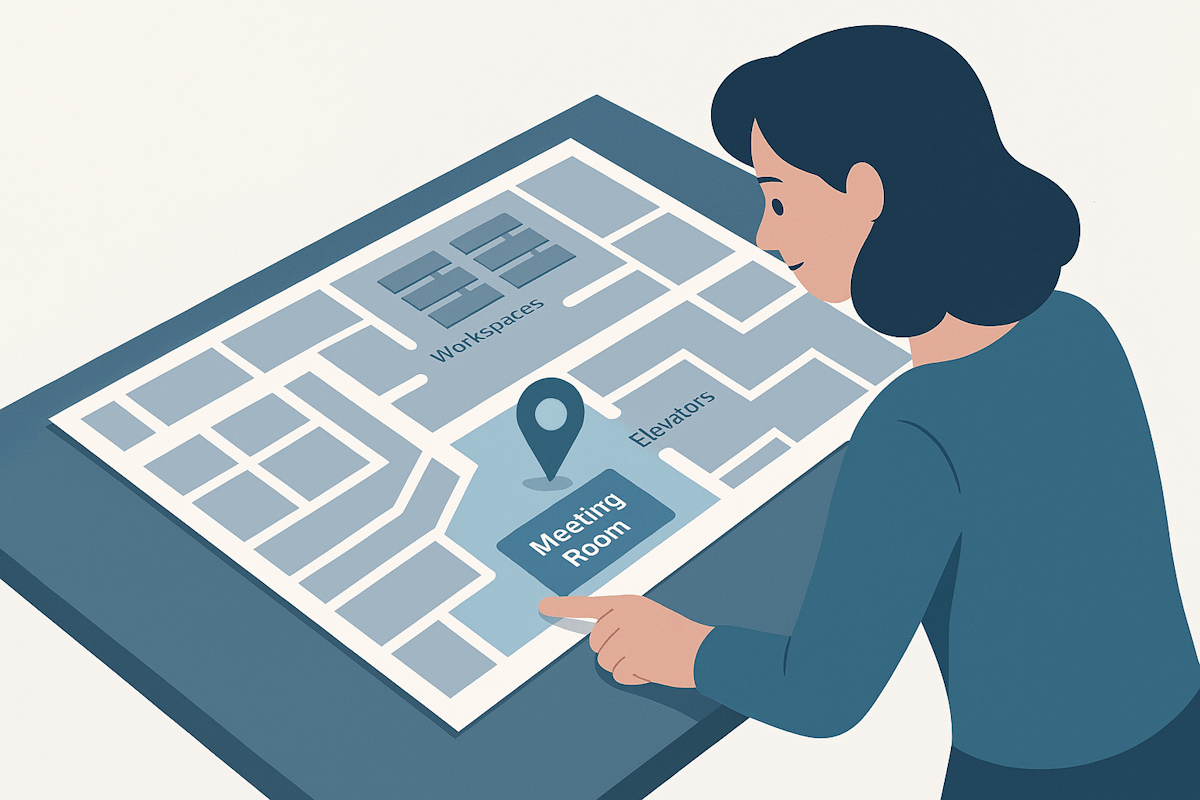
Microsoft Places Finder replaces Room Finder in Outlook. It relies on the same Exchange room and workspace data, but changes how that data is surfaced. Instead of starting with a room list, users navigate by place: country, city, building, floor.
What Places Finder brings to Outlook
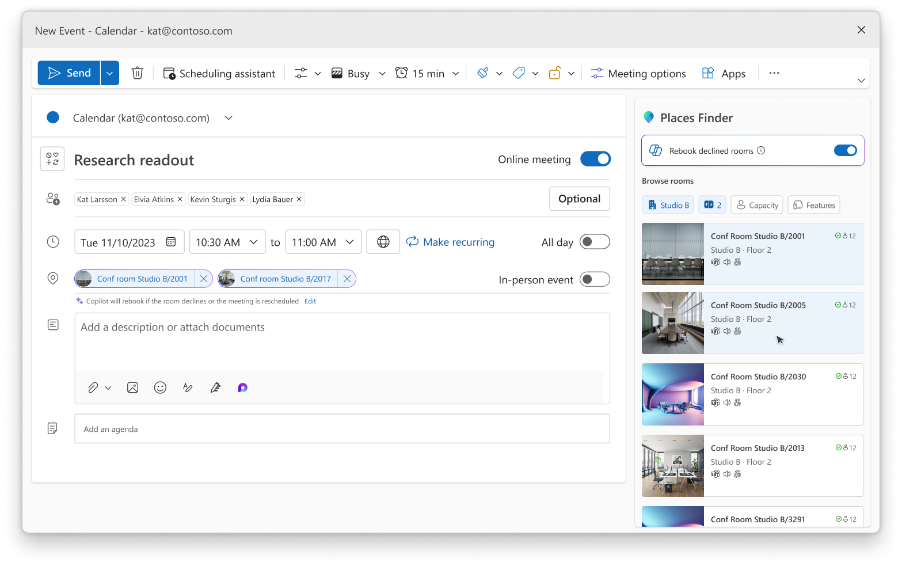
Once buildings and floors are defined, Places Finder introduces a richer discovery experience. Capacity is still relevant, but it’s no longer the only signal. Location, floor, and space metadata play a bigger role in helping users decide where a meeting should take place.
When spaces are properly enriched, Outlook becomes better at supporting intent. Not every meeting needs the biggest room available. Some need proximity. Others need specific features. Places Finder makes those trade‑offs easier to see without turning room booking into a configuration exercise.
Enabling Places Finder as an administrator
Places Finder is opt‑in. Microsoft does not enable it by default, and that feels deliberate. This is something administrators are expected to roll out intentionally.
To enable it, you must use PowerShell 7 together with the Microsoft Places PowerShell module.
Once connected, Places Finder can be enabled in two ways. You can turn it on for the entire organization, or scope it to a mail‑enabled security group. Starting with a security group is usually the safer approach. It allows you to validate the experience, confirm licensing coverage, and gather feedback before expanding access. The group must be mail‑enabled, otherwise the configuration may not work as expected.
Set-PlacesSettings -PlacesFinderEnabled 'Default:false,OID:53212aff-b481-31b1-970b-2ca512e6ae53@ef2a97124-022c7-4bcb7-8a8c-bc2a4256201c:true'
If you are comfortable with the new experience you can go ahead and enable it to the entire organization.
Set-PlacesSettings -PlacesFinderEnabled 'Default:true'
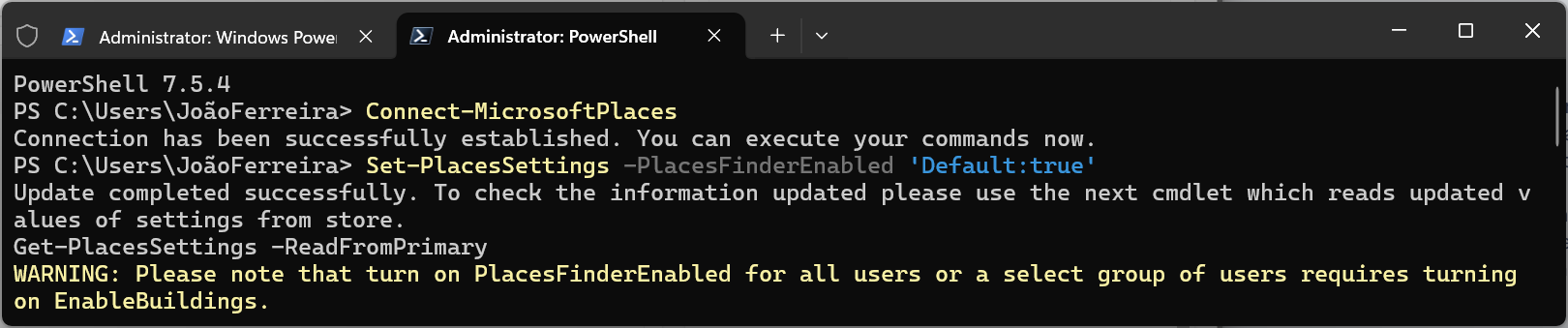
After enabling Places Finder, the setting is applied immediately, but it can take some time before the new experience appears in Outlook for users. Microsoft doesn’t publish a fixed propagation window, so validation should be done using Get-PlacesSettings rather than relying solely on the UI.
Get-PlacesSettings -ReadFromPrimary
Bridging the gap between digital and physical spaces
I’ve been working closely with Microsoft Places over the past months, not just from an admin or user perspective, but by extending it beyond the web.
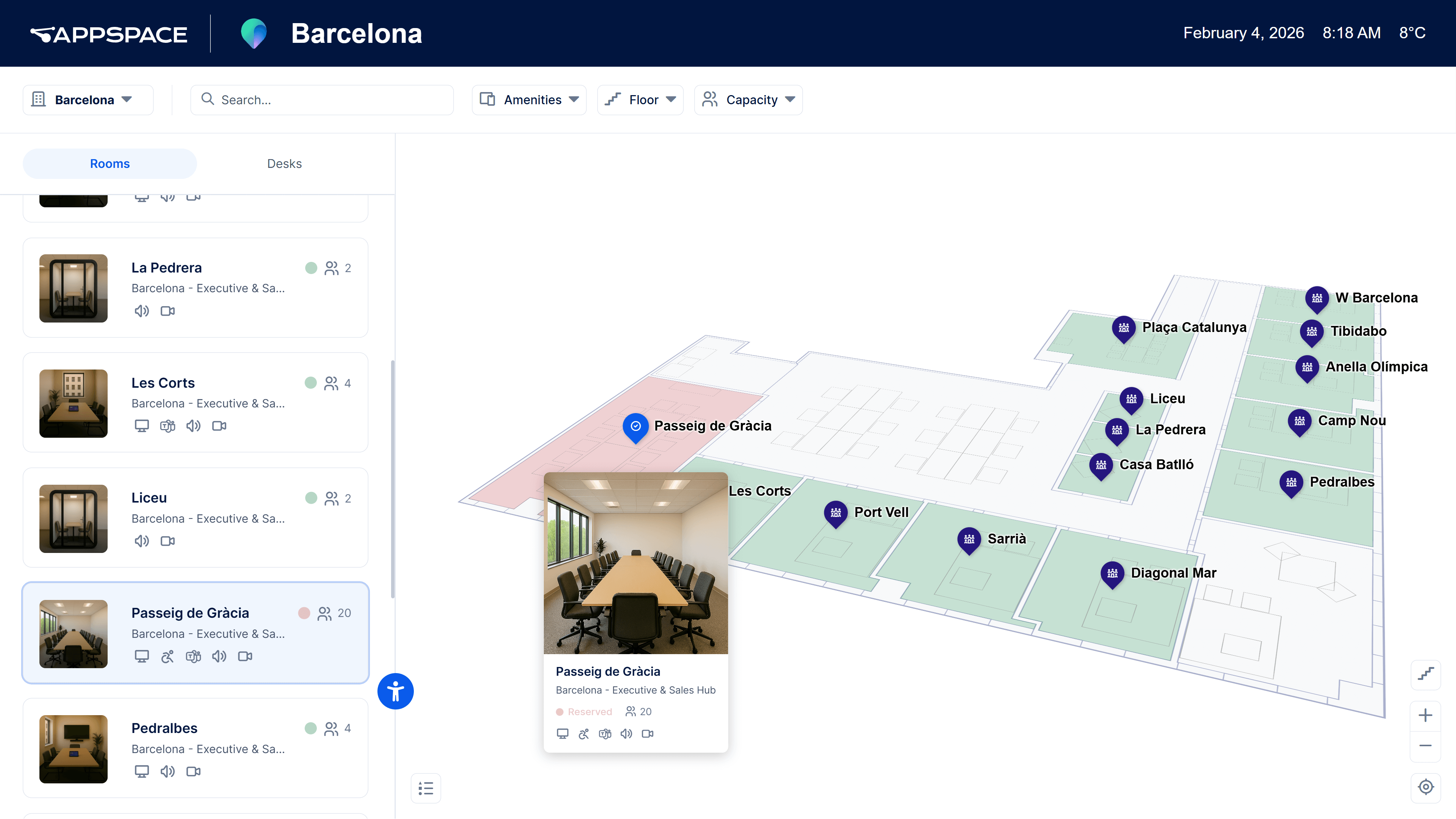
At Appspace, I’ve been working in a Microsoft Places kiosk: an interface to the physical workplace that allows users to interact with Places without opening Outlook or Teams, and without needing a personal device at all. Walk up, see how space is being used, and interact with Places directly in the environment it represents.
That’s where this work becomes interesting to me. Microsoft Places isn’t just about scheduling or room booking. It’s about connecting digital intent with physical space. Places Finder is one of the first visible steps in that direction, and it’s been a genuinely fun ride working on extending that idea into the real world.






No comments yet