Microsoft Places Finder in Outlook: what it replaces and how to enable it

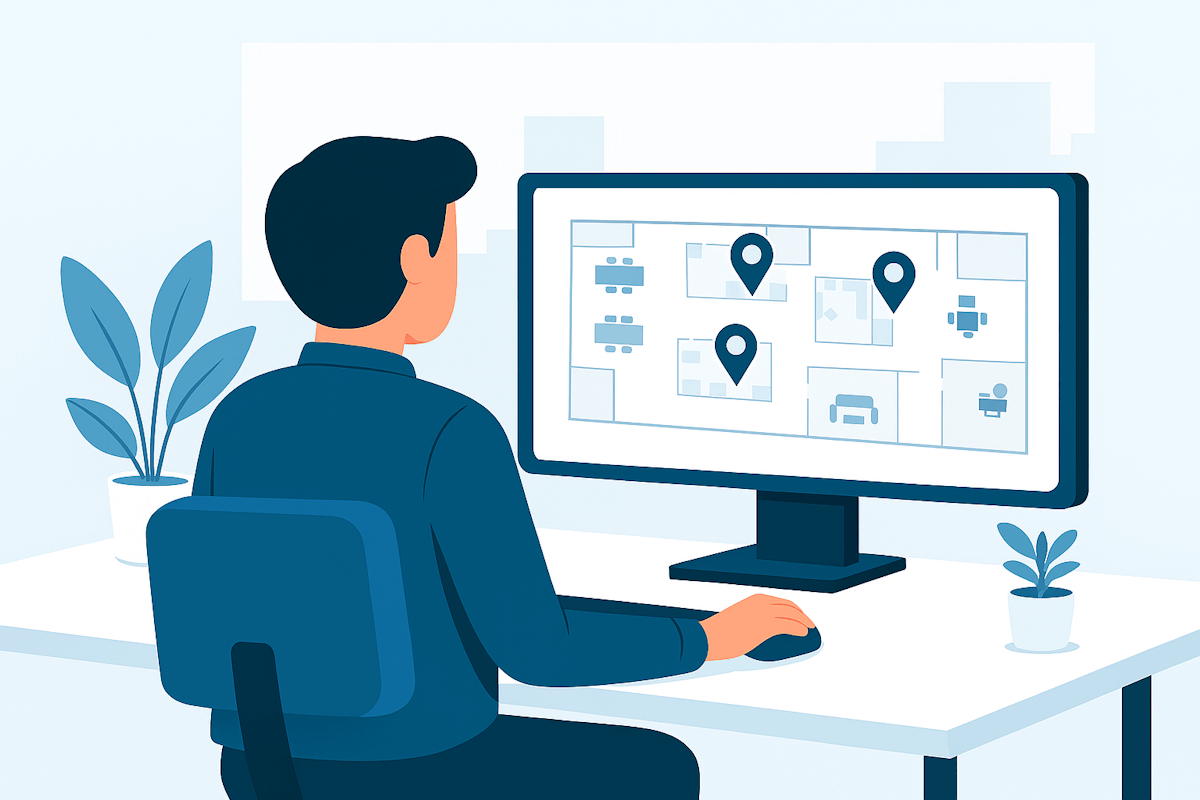
Finding a meeting room in Outlook has long meant using Room Finder: a flat list of resources with little sense of where those rooms actually are. It did the job, but it treated space as an abstract concept, disconnected from buildings, floors, and the way people move through an office. That model worked when offices were static.

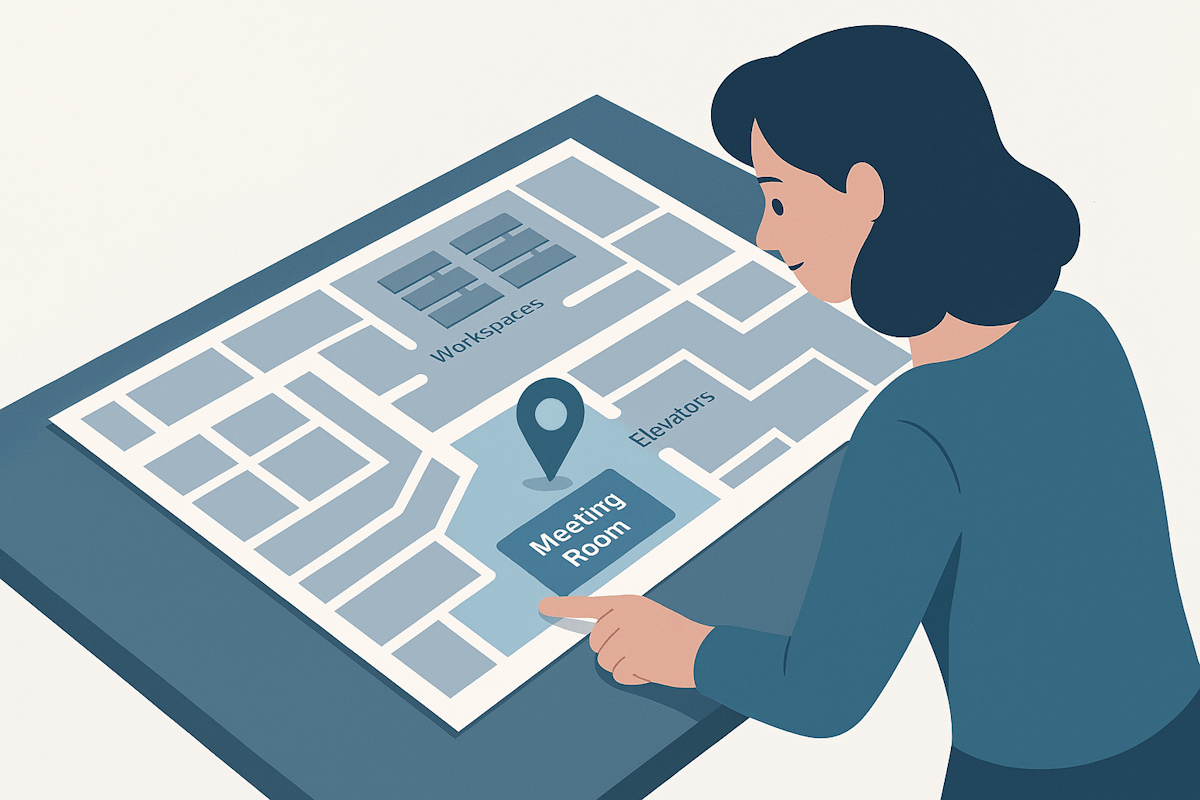
Microsoft Places Finder replaces Room Finder in Outlook. It relies on the same Exchange room and workspace data, but changes how that data is surfaced. Instead of starting with a room list, users navigate by place: country, city, building, floor.
Microsoft Places Finder

(more…)

Hands-On Microsoft 365 Pulse – Weekly Updates (Week 7)

For the second week in a row, Microsoft Teams leads the pack with the most updates in Microsoft 365. Among all the announcements, I’m particularly excited about the Simplified Teams app bar that promises a cleaner and more focused experience.

The past week also brought a red flag alert: SharePoint Designer 2013 will no longer work after July 14, 2026. If you haven’t migrated your workflows yet, now is the time to do it!

I’ve passed the halfway point of my February blog post marathon! This week, I’m sharing a selection of the 4 articles I published last week. You can follow all the updates on my blog, where I guarantee to publish something new every day until the end of the month.

(more…)

Microsoft Places roadmap highlights announced at ISE

At ISE, Microsoft shared several updates and upcoming capabilities for Microsoft Places, alongside a clearer outline of what is expected to land over the next six to nine months. The announcements focused primarily on reservation experiences, workplace presence, spatial data, and extensibility, rather than introducing a single flagship feature.

Microsoft Places Roadmap

(more…)

Hands-On Microsoft 365 Pulse – Weekly Updates (Week 6)

This past week was surprisingly busy for Microsoft Teams, with updates landing across several areas. My highlight goes straight to the new digital signage support for Microsoft Teams Rooms on Android — finally a simple, native way to bring content to the room screens. Another small but very welcome win: dark mode for the SharePoint admin center. My eyes will definitely appreciate that one.

Meanwhile, my February blog post marathon is still going strong. Last week I was in Barcelona for ISE, showcasing some of the Microsoft Places work I’ve been building at Appspace, so a few of the articles naturally leaned in that direction.

(more…)

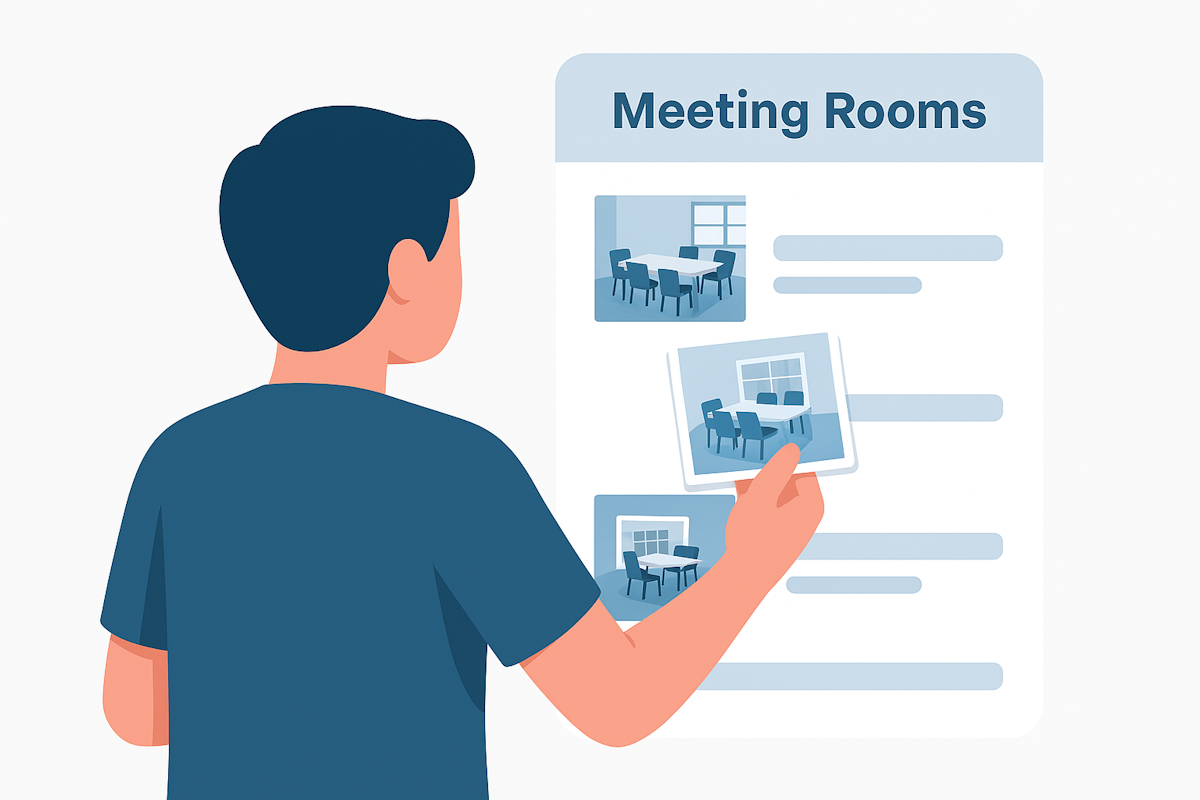
How to Add Images to Microsoft Places Rooms and Desks

Microsoft Places has come a long way since its first preview release, back when it didn’t even have an admin interface. Fast‑forward to today, and admins can create and manage rooms and desks directly from the admin center. Capacity, amenities, names, zones… everything is there.

Well, almost everything. There’s still one small detail missing in the Places admin experience, and for someone visual like me, it makes all the difference: the ability to add an image that represents the room or desk.

Even though Microsoft Places doesn’t expose this option in the UI yet, there is a way to add these images today.

Microsoft Places Rooms

(more…)

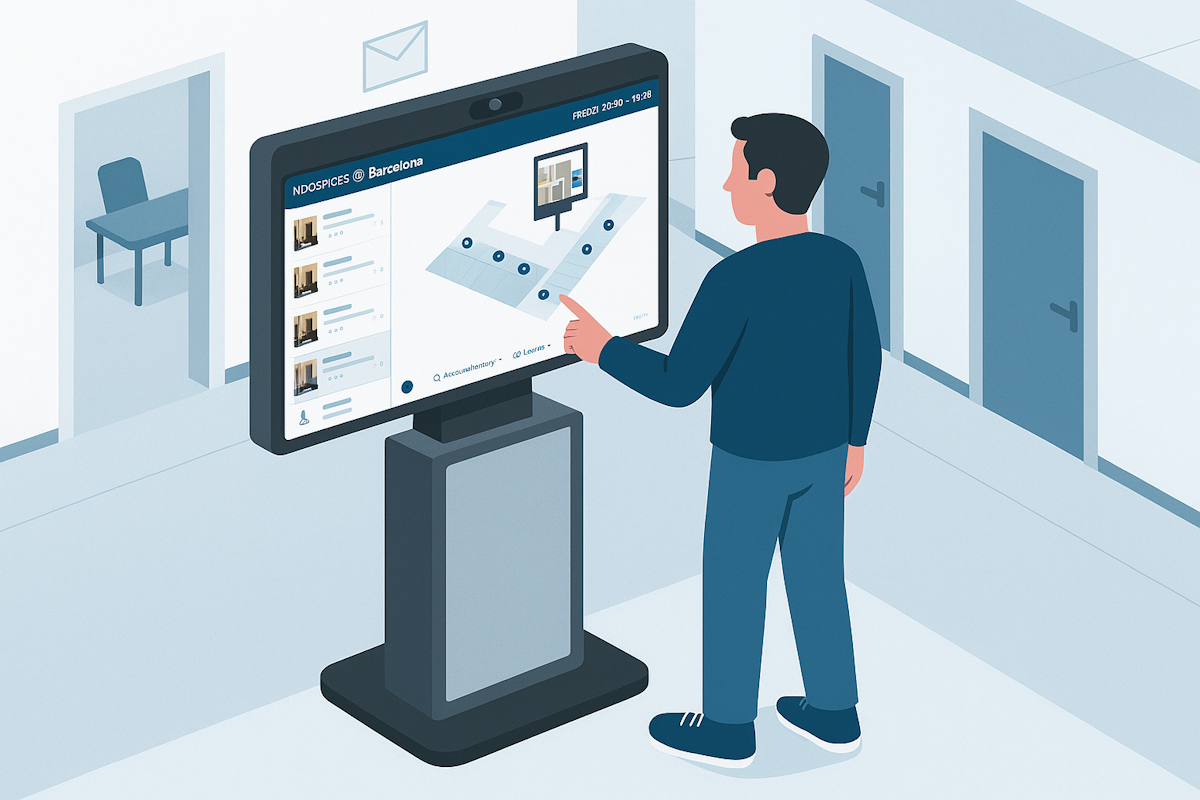
Bringing Microsoft Places from Digital to Physical with Appspace Kiosks

This week felt a bit different, so I’m bringing something from my day‑to‑day work at Appspace into the blog. At ISE in Barcelona we showed, for the very first time, the kiosk integration for Microsoft Places. As a Product Manager who loves creating integrations on top of the Microsoft platform, seeing this come to life in the physical world was a great moment.

Microsoft Places gives organizations a digital layer for their workplace, from maps to space information and everything needed to keep spaces managed and used more efficiently. What we’ve done at Appspace is take that digital layer and give it a physical presence through our kiosks and workplace devices, so people can actually interact with Microsoft Places data as they move through an office.

(more…)

Hands-On Microsoft 365 Pulse – Weekly Updates (Week 5)

It’s a new month, which means your monthly recap for SharePoint, Copilot, Viva, and Teams is here. Plus, this February I’m diving into another blog post marathon – one post every day! The first two are already live, so if you’re curious about turning your Copilot into autopilot, or what’s new with Microsoft Places, go check them out!

(more…)

Microsoft Places licensing — what changed and why it matters

Microsoft Places licensing has shifted from a per‑user, Teams Premium‑based model to a per‑space model centered on the new Teams Shared Space license. In practice, end‑user experiences like Places Finder and Places Explorer are now included for virtually all M365 users with calendar access, while advance desk booking, auto‑release, and space analytics are unlocked by licensing the physical spaces themselves.

Let’s put this in context with a short story. Imagine Contoso Workspace, a 600‑person hybrid company that wants everyone to see maps and book desks, but only cares about managing 120 actual desks and meeting rooms. Under the old model they had to consider licensing people; under the new one they just license the spaces they manage. This guide walks you through everything you need to know about the change and how to adapt fast.

(more…)

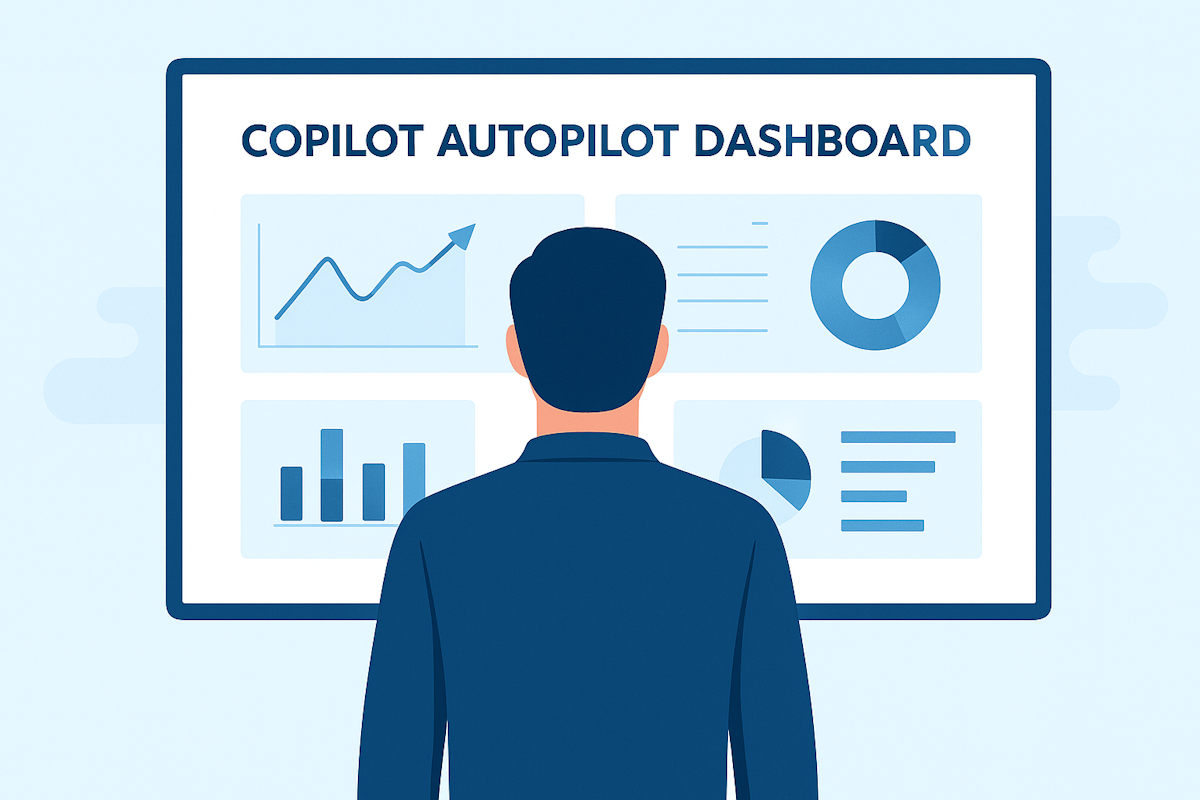
Turn Your Copilot into Autopilot – Automated Prompts on a Repeating Schedule

I like to start the day with Copilot, but I don’t want to type the same prompt every morning. The fix is simple. Turn a good prompt into a small routine that runs for you, gathers the signals you care about, and sends a clean briefing before I even sit down at my desk.

Microsoft has quietly added this feature that lets you schedule a Copilot prompt, so you don’t have to remember to run it every morning. It’s simple, lightweight, and works directly inside Microsoft 365 without needing Power Automate or Copilot Studio.

Turn Your Copilot into Autopilot – Automated Prompts on a Repeating Schedule

(more…)

What’s new for Copilot – January 2026

Copilot had another massive month, more than 50 updates across Microsoft 365, so instead of trying to cover everything up front, I want to call out a few changes that genuinely make day‑to‑day work easier. The first one is all about convenience: you can now press the Teams button on your certified Bluetooth headset or earbuds and instantly trigger voice in Microsoft 365 Copilot from the Teams mobile app on iOS. With voice becoming a bigger part of how we use AI at work, removing all the taps and menus makes Copilot feel much more natural and accessible.

Another update that stood out to me is Copilot ability to create and view Outlook rules using natural language. Anyone who has ever tried to manage rules in Outlook knows how tedious that interface can be. Now you can simply describe what you want to move emails, filter newsletters, clean up inbox noise and Copilot builds the rules for you.

My final highlight is the addition of AI workflow templates in Microsoft Teams. These let you automate repetitive tasks using scheduled prompts, without touching Power Automate or building anything complex. It’s perfect for recurring follow-ups, status pings, reminders, or routine check-ins.

(more…)


I've been working with Microsoft Technologies over the last ten years, mainly focused on creating collaboration and productivity solutions that drive the adoption of Microsoft Modern Workplace.

Trending Posts